I just installed Snow Leopard and most things are working (except calendar sync unfortunately). My version 1.0 version of Mail ActOn was incompatible in Mail.app. I checked the Mail ActOn site and they are now $25 to buy version 2. Mail Acton is a great product but it's worth $10 or maybe $15 at the most to me so I didn't buy it. There's a 30 day trial if you want to try it.
I looked around and Message Filer works with Snow Leopard. There's a free working version with nag screens every now and again. It just lets you move messages to folders, has a nice search feature in the pop-up window and works on multiple highlighted items. So I recommend it.
And even better, it's $8 which is the right price.

Switching to Mac
Saturday, August 29, 2009


Monday, July 13, 2009
A keyboard shortcut to add hyperlinks in Mail.app
Finally! For years, I wanted an easy way to press COMMAND-K to add a hyperlink in Mail.app instead of using Edit | Link | Add.
Hawk Wings has a how-to. Just follow the directions and it will work.
Thank you! I will use this every day...
The trick is to set the Mail.app keyboard shortcut through the system preferences then reference the menu item through it's title "Add...". This, amazingly, works. You can now press COMMAND-K, paste in the link and it's done.
Hawk Wings has a how-to. Just follow the directions and it will work.
Thank you! I will use this every day...
The trick is to set the Mail.app keyboard shortcut through the system preferences then reference the menu item through it's title "Add...". This, amazingly, works. You can now press COMMAND-K, paste in the link and it's done.
Wednesday, March 25, 2009
MacVim: vi never looked so pretty
Vi is a text editor with an absolute bastard of a vertical learning curve.
It's so tough, you'll think you're crazy learning it.
And now its lickable on the Mac thanks to the MacVim Mac app!

MacVim adds a slick wrapper of services around the familiar gvim interface including auto-updating with Sparkle, nice integration with Mac copy and paste, Apple-N for new windows, a multiple window interface and transparency (:set trans=10).
Vi is powerful and fast and awesome. It's search and replace regex support is rich and you can run vim commands as scripts. It has syntax highlighting, spell checking and limitless undo. You can navigate without moving your hands from the keyboard. And the keyboard movement controls are used again and again on computers, from unix man pages to Boston.com's The Big Picture.
This little app is so famous, you can run Microsoft Outlook, Word and Visual Studio 2008 with vi editing in-line on a PC using viemu (that app's not free like vim unfortunately).
Thanks to Bram Moolenaar at vim.org for his awesome work and for an application I wouldn't want to live without. Look on vim.org for vim on your operating system.
It's so tough, you'll think you're crazy learning it.
And now its lickable on the Mac thanks to the MacVim Mac app!

MacVim adds a slick wrapper of services around the familiar gvim interface including auto-updating with Sparkle, nice integration with Mac copy and paste, Apple-N for new windows, a multiple window interface and transparency (:set trans=10).
Vi is powerful and fast and awesome. It's search and replace regex support is rich and you can run vim commands as scripts. It has syntax highlighting, spell checking and limitless undo. You can navigate without moving your hands from the keyboard. And the keyboard movement controls are used again and again on computers, from unix man pages to Boston.com's The Big Picture.
This little app is so famous, you can run Microsoft Outlook, Word and Visual Studio 2008 with vi editing in-line on a PC using viemu (that app's not free like vim unfortunately).
Thanks to Bram Moolenaar at vim.org for his awesome work and for an application I wouldn't want to live without. Look on vim.org for vim on your operating system.
Tuesday, March 24, 2009
Growl, email and potential insanity
If you use Growl for system-wide notifications, then you may want to check out the MailMe notification. This is only useful for people that reserve Growl for important notifications or it will REALLY irritate you. WARNING: Dial down your notifications in subscribing apps first.
Once turned on, you give permission for Growl to send emails. When a Growl notification happens (like an IM chat starting in Adium), a message will be sent to the nominated email account.
This has come in handy when I've been away from my computer (like at lunch, in a meeting, out) and want to know what my system is up to. I have an iPhone so I get email everywhere.
Use it as you will - but dial down your notifications to things you really want to know about or it will drive you nuts.
Once turned on, you give permission for Growl to send emails. When a Growl notification happens (like an IM chat starting in Adium), a message will be sent to the nominated email account.
This has come in handy when I've been away from my computer (like at lunch, in a meeting, out) and want to know what my system is up to. I have an iPhone so I get email everywhere.
Use it as you will - but dial down your notifications to things you really want to know about or it will drive you nuts.
Top - find those greedy processes using Terminal
Want to find those greedy processes? Wanna bet it's Firefox? Just kidding. Sort of. Just run this at the Terminal window (Applications folder | Utilities folder | Terminal, or just launch Quicksilver and type "Terminal"):
This will list all your running processes by CPU utilization. The offender will be at the top.
Press "q" to quit. The PID can be used to kill the process as well, but that's probably only for more advanced users. I use this technique occasionally when I need to SSH into my mac box and kill some process that's sucking on the resource pipe a little too hard :)
top -ocpu
This will list all your running processes by CPU utilization. The offender will be at the top.
Press "q" to quit. The PID can be used to kill the process as well, but that's probably only for more advanced users. I use this technique occasionally when I need to SSH into my mac box and kill some process that's sucking on the resource pipe a little too hard :)
Monday, March 16, 2009
Suspend your virtual machine - it's faster!
If you still need the occasional windows world application, consider using suspend to speed up the process.
When I need a Windows application I can boot up Parallels or VMWare Fusion, press play and the virtual machine is available within about a minute or so. This is much faster than a cold boot.
When you’re done, just go to Virtual Machine | Suspend and within about 30 seconds you can quit the app and you’re done.
It’s on-demand computing, fast and convenient.
When I need a Windows application I can boot up Parallels or VMWare Fusion, press play and the virtual machine is available within about a minute or so. This is much faster than a cold boot.
When you’re done, just go to Virtual Machine | Suspend and within about 30 seconds you can quit the app and you’re done.
It’s on-demand computing, fast and convenient.
Wednesday, February 25, 2009
NTFS for Mac
NTFS for Mac (Paragon) is a file system plugin for Mac OS/X allowing access to Windows NTFS drives. I've got history with this product. The current version I'm using (v6.5.1) works very well. I can access my external NTFS drives and read and write to them.
The previous version I installed didn't work - in fact it messed with random files during file operations rendering them useless after copying. I'm very glad I did tests first. It didn't destroy the file allocation indexes, fortunately, but I immediately uninstalled the product and it took me months to get the courage to try again. I just used a gigabit local network and a windows laptop to copy files in the meantime.
Paragon support was responsive and offered a new version to try but I didn't try it immediately because if there's one product that must not fail, it is filesystem driver software!
Months later I downloaded their updated version and tried a few tentative tests and it worked fine for me. Since then I've used it for over six months and it's been good.
So my advice: buy it if you work with external NTFS drives. But test thoroughly first before using with your hardware. And if the data is REALLY important, use a gigabit network or NAS (network attached storage) device to bridge the Mac-PC divide.
Friday, February 06, 2009
Git now available on Mac OS/X
If you love git or want to try git, you now can on Mac OS/X.
Get the git installer on Google Code: http://code.google.com/p/git-osx-installer/.
Git is a (relatively) new source control system that uses crypto hashes to guarantee the consistency of the repository and do some magically-fast branch comparisons. It also facilitates local commits, cheap branches and fast distributed workflow for teams.
Find out more on http://git-scm.com. There's a windows (cygwin, msysgit) version available and of course linux, where git was originally borned :)
Right now I can only see support on the Mac for a subset of git commands {git, git-cvsserver, git-shell, git-upload-pack, gitk} so git-svn and git-daemon are missing but it's a great start and works very well - much quicker than the windows cygwin-based version. Props for getting gitk to work - that's a great branch visualisation tool.
Thanks to the team that put the installer together - git is great for tracking changes to local projects even if you don't have an upstream workflow to push or pull from.
Get the git installer on Google Code: http://code.google.com/p/git-osx-installer/.
Git is a (relatively) new source control system that uses crypto hashes to guarantee the consistency of the repository and do some magically-fast branch comparisons. It also facilitates local commits, cheap branches and fast distributed workflow for teams.
Find out more on http://git-scm.com. There's a windows (cygwin, msysgit) version available and of course linux, where git was originally borned :)
Right now I can only see support on the Mac for a subset of git commands {git, git-cvsserver, git-shell, git-upload-pack, gitk} so git-svn and git-daemon are missing but it's a great start and works very well - much quicker than the windows cygwin-based version. Props for getting gitk to work - that's a great branch visualisation tool.
Thanks to the team that put the installer together - git is great for tracking changes to local projects even if you don't have an upstream workflow to push or pull from.
Friday, October 24, 2008
Switching to minimized windows with Apple-Tab
I finally figured it out after years of frustration when writing the previous article...
If you want to bring up a minimized window with the task switcher (Apple-Tab key combination):
HOLD DOWN THE OPTION KEY before LETTING GO OF THE APPLE KEY!
Oh my god, why isn't this the default instead of buried?!
Sigh.
If you want to bring up a minimized window with the task switcher (Apple-Tab key combination):
HOLD DOWN THE OPTION KEY before LETTING GO OF THE APPLE KEY!
Oh my god, why isn't this the default instead of buried?!
Sigh.
Witch - better task switching
If you're annoyed with the way the Mac switches running programs with the key combination, look at Switch. It looks a little different but has one important feature:
IT MAXIMIZES DOCK-MINIMIZED WINDOWS when you switch to them.
Read a later post on how to do this without Switch...
IT MAXIMIZES DOCK-MINIMIZED WINDOWS when you switch to them.
Read a later post on how to do this without Switch...
Monday, October 06, 2008
When Time Machine fails: Seek-click-spindown-retry
My Macbook hard drive died recently. No warning - one minute fine, the next the familiar and nauseating seek-click-spindown-retry cycle I’ve come to dread. Dearly departed was a Seagate Momentus 120Gb 5400 RPM drive. What I didn’t know at the beginning was my Time Machine backup drive was faulty too.
My external half-terabyte drive stored 9 months of history as a Time Machine backup.
I’d googled for the restore process and it seemed painless. Just boot off the Mac OSX installer CD, System | Restore from Spotlight Backup and Voila - done!
Which of course, wasn’t how it went at all.
First, the hard drive. I live on the eastern US coast and my local Apple store would only replace the hard drive with one the same size as my original Macbook, a measly 60 gig or something. They would also charge $350 so I forgot that idea immediately - it’s easy to put it a new cheap 2.5” SATA drive although Apple won’t sell you one.
The only proviso: the hard drive bay is attached to the hard drive with Torx T8 screws - you’ll need the right screwdriver.
I bought a 320GB 2.5" Seagate Momentus 7200 rpm drive (finally, plenty of space) and got it installed. Insert Mac OSX 10.5 Leopard disk, reboot. I chose the menu option to restore from a Time Machine backup and after some playing around rebooting (it seems my internal drive wasn’t recognized straight away) I got to the restore process.
Time Machine started reading from the most recent backup, got to 30% and then the hard drive stopped reading, span down like someone cut the power then started back up again. The Time Machine drive had a mid-read hardware failure causing it to “reboot”. Of course, Time Machine couldn’t handle a violent read interruption and so gave the helpful “sorry, folks, reboot and try again” message.
What follows involved reinstalling OSX from scratch, then writing some ad-hoc bash scripts to get rsync to copy my home drive from the time machine backup disk to my new home directory. This needed to be done piecemeal as an iterative copy process to cater for the random drive brown-outs.
The script looked something like this:
#!/bin/bash
while [ "foo" == "foo" ]; do
rsync -av /Volumes/TimeMachineDrive/Backups.backupdb/My\ MacBook/Latest/Mac/Users/myuser/Photos/ ~/RestoreFolder
sleep 10
done
So rsync would just start where it left off after waiting 10 seconds for the drive to restart.
Although a broken drive isn’t Apple’s fault it would have been nice if the restore process could be a little more robust. I eventually got all my data back and replaced my defective Time Machine drive.
Kudos to Apple for providing an elegant folder-based backup solution accessible from the Finder and command-line. Without that, it would have made my life a lot harder. The scripts above were trivial to write.
The use of hard links by Time Machine is clever - it allows space to be used optimally and makes full use of the existing operating system resources and is fully backward compatible.
Sometimes Apple does things right - this is an elegantly engineered solution, even if they did give the GUI designers WAY too much leeway... gimmicky, much?
My external half-terabyte drive stored 9 months of history as a Time Machine backup.
I’d googled for the restore process and it seemed painless. Just boot off the Mac OSX installer CD, System | Restore from Spotlight Backup and Voila - done!
Which of course, wasn’t how it went at all.
First, the hard drive. I live on the eastern US coast and my local Apple store would only replace the hard drive with one the same size as my original Macbook, a measly 60 gig or something. They would also charge $350 so I forgot that idea immediately - it’s easy to put it a new cheap 2.5” SATA drive although Apple won’t sell you one.
The only proviso: the hard drive bay is attached to the hard drive with Torx T8 screws - you’ll need the right screwdriver.
I bought a 320GB 2.5" Seagate Momentus 7200 rpm drive (finally, plenty of space) and got it installed. Insert Mac OSX 10.5 Leopard disk, reboot. I chose the menu option to restore from a Time Machine backup and after some playing around rebooting (it seems my internal drive wasn’t recognized straight away) I got to the restore process.
Time Machine started reading from the most recent backup, got to 30% and then the hard drive stopped reading, span down like someone cut the power then started back up again. The Time Machine drive had a mid-read hardware failure causing it to “reboot”. Of course, Time Machine couldn’t handle a violent read interruption and so gave the helpful “sorry, folks, reboot and try again” message.
What follows involved reinstalling OSX from scratch, then writing some ad-hoc bash scripts to get rsync to copy my home drive from the time machine backup disk to my new home directory. This needed to be done piecemeal as an iterative copy process to cater for the random drive brown-outs.
The script looked something like this:
#!/bin/bash
while [ "foo" == "foo" ]; do
rsync -av /Volumes/TimeMachineDrive/Backups.backupdb/My\ MacBook/Latest/Mac/Users/myuser/Photos/ ~/RestoreFolder
sleep 10
done
So rsync would just start where it left off after waiting 10 seconds for the drive to restart.
Although a broken drive isn’t Apple’s fault it would have been nice if the restore process could be a little more robust. I eventually got all my data back and replaced my defective Time Machine drive.
Kudos to Apple for providing an elegant folder-based backup solution accessible from the Finder and command-line. Without that, it would have made my life a lot harder. The scripts above were trivial to write.
The use of hard links by Time Machine is clever - it allows space to be used optimally and makes full use of the existing operating system resources and is fully backward compatible.
Sometimes Apple does things right - this is an elegantly engineered solution, even if they did give the GUI designers WAY too much leeway... gimmicky, much?
Monday, April 14, 2008
Upgrade to Leopard
I waited until 10.5.2 came out before getting the Leopard update for my old CoreDuo 20" iMac and my MacBook Pro both running Tiger. I wiped the iMac20 and installed Leopard fresh, but I upgraded the MacBook Pro because it is my work machine and I didn't want to mess with the system. A few days later my 24" iMac turned up; so I had iMac24 with preinstalled Leopard, iMac20 with a fresh install of Leopard and my MacBook Pro with upgraded Leopard.
Upgrading is a mistake. I highly recommend telling your Leopard update DVD to wipe everything off the disk and install fresh. My upgraded MacBook Pro was running like a police officer in love with jelly doughnuts; which is more of a waddle than running. The system was constantly accessing the hard drive, I had regular crashes in parallels and a number of kernel panics. There is something very deflating about productively using software only to have it all go away in a blink. I thought I had left that behind when I escaped the foul grip of Microsoft's Windows. This situation peaked at three incidents in one day, where I just spat the dummy.
Both my iMacs were purring along with their modern feline titled operating system, why not the MacBook Pro?! So I bit the bullet. After a session of Time Machine I reformatted the MacBook Pro with a fresh new copy of Leopard. Then I copied across my document files, pictures, etc form Time Machine. And lo, the system is better than it has ever been, the sky is bluer, grass is greener and the birds are singing.
I am unsure what exactly the problem was. I did have a lot of extraneous pieces of software that I was using or testing, but everything was functioning fine in Tiger and changed to a pig when I upgraded to Leopard. So if you don't want Pig-Leopard you have to wipe the slate; tell your Leopard install process not to upgrade but to wipe that ugly disk clean of the previous beast and grow your Leopard from scratch.
Upgrading is a mistake. I highly recommend telling your Leopard update DVD to wipe everything off the disk and install fresh. My upgraded MacBook Pro was running like a police officer in love with jelly doughnuts; which is more of a waddle than running. The system was constantly accessing the hard drive, I had regular crashes in parallels and a number of kernel panics. There is something very deflating about productively using software only to have it all go away in a blink. I thought I had left that behind when I escaped the foul grip of Microsoft's Windows. This situation peaked at three incidents in one day, where I just spat the dummy.
Both my iMacs were purring along with their modern feline titled operating system, why not the MacBook Pro?! So I bit the bullet. After a session of Time Machine I reformatted the MacBook Pro with a fresh new copy of Leopard. Then I copied across my document files, pictures, etc form Time Machine. And lo, the system is better than it has ever been, the sky is bluer, grass is greener and the birds are singing.
I am unsure what exactly the problem was. I did have a lot of extraneous pieces of software that I was using or testing, but everything was functioning fine in Tiger and changed to a pig when I upgraded to Leopard. So if you don't want Pig-Leopard you have to wipe the slate; tell your Leopard install process not to upgrade but to wipe that ugly disk clean of the previous beast and grow your Leopard from scratch.
Monday, February 18, 2008
TrueCrypt for Mac released!
Finally, TrueCrypt, an excellent open-source encryption application, is available on the Mac!
You can download it here:
www.truecrypt.org
This is a highly recommended open-source encryption application and makes encrypted files available on Mac, PC and Linux.
Thank you TrueCrypt team!
You can download it here:
www.truecrypt.org
This is a highly recommended open-source encryption application and makes encrypted files available on Mac, PC and Linux.
Thank you TrueCrypt team!
Tuesday, May 29, 2007
Zen and the art of Google Search (it will help)
This article will help you find what you want - these techniques have helped me. After talking with friends that don’t use Google (or other engines) too often I found I knew lots they didn’t so this will probably help.
At first, it seems simple - you type in the first thing that comes to your mind and then hunt and peck and wait and back and peck again.
But there’s a better way - here’s how. Take the advice: JFGI and find it.
1. Search assuming you’ll find your target.
When searching for something, try and imagine the text that would appear on the perfect web page about what you want to find. Sometimes it’s useful to search using a question but for certain queries, search for the text you think would appear in the result of the search.
For example, I heard a podcast (internet radio show) that talked about a photo of Al Gore’s office that had three screens and was part of a profile of Al Gore in an online article (didn’t know where it was published). I started by typing:
“al gore photo” - that didn’t help
then, “al gore photo profile” - much miscellaneous stuff
It was only when I thought of what someone might write in an article about this photo or link to it that the search:
“al gore photo screens”
That I found the link to the Time article. What is remarkable about this photo is that he’s got three huge Apple Cinema displays on his desk - this is the first thing you’d mention and what you’d expect would HAVE to be in the text of a blog or news entry about this photo. In fact, “al gore screens” might have found it as well because it’s an unusual association of ideas and makes this search a unique hit.
2. Search shallow, look deep.
Narrow down by starting broad then scanning keywords in the description of each result that’s better or closer to what you want. Start by typing a word that must result in a close (ish) result and scan for better words that will narrow down the result. This technique works well when you’re not sure of the terminology of something but will know it when you see it.
I could suggest you use a dictionary to find synonyms or further refine some of the keywords you’re looking for but most search engines (if they’re any good) should display snippets under each link containing heaps of relevant words.
e.g. You’re looking for a particular schooling habit of dolphins. Type in “dolphin school” then look for keywords that will narrow your search to exactly what you want. This usually only means two or three attempts rather than five to ten. Starting broad helps here but choose keywords that will put you in the ballpark.
3. Use google to search a specific site.
If you know the site the content comes from, DON’T search for it on the site. Use google.
Digg.com is a classic example of this - it’s search feature absolutely sucks (sorry Kevin, but it does). Google will find it instantly. If you remember the title or the gist of the article, then just type:
“toxin site:digg.com”
The site: tag will only search that site and it’s far faster than just about every site’s search engine. Who has 150k machines (or more) to grep with? :)
4. Sometimes you can hold on too hard. Let go.
This is related to point 2 but it deserves it’s own point and it’s a bit Zen :). If you’re typing in too many keywords you can assume a result that leads you 10-15 levels down a path that’s restrictive.
Occasionally on a difficult search, it’s best to just back up and type the best two words you’ve used. Use the results to coalesce the result to something that’s closer to what you’re looking for. So search shallow but look deep.
5. Can’t find what you want after many searches?
Occasionally, you’ll find that the result eludes you. Sometimes it’s helpful to vocalize what you want to find (to yourself) like you’re trying to explain it to someone then choose the best keywords. Or just type the lot in. In expressing what you want to find you’ll either form a question or express the matter you want to search and it’ll present new words and ideas you can use.
6. Nouns are you’re friend. Verbs and adjectives are your fast index.
Remember that people are emotive. Computers aren’t. If you’re looking for something with action then use the words that best describe the *action* of what you’re looking for. You’ll find it immediately because this will become (in combination with the more mundane nouns) an instant emotive pointer to the dynamic as well as the actual descriptive meaning of what you’re trying to find.
7. Use questions, when appropriate.
If you’re sure someone, somewhere would have asked the question you’re asking online either in an FAQ, a use-group or in a rhetorical question on a blog then this can find it for you very quickly.
e.g. I wanted to know what the term “stat” meant in medical dramas (I’m a big fan of the House series). I knew it probably mean “quick!” but wanted to know the background. Given that this has GOT to be a common question of anyone laptop-surfing in front of the TV, this query found a very good answer straight away:
“what does stat mean”.
It found a Yahoo Answers question “What does the term STAT mean in medical situations?” and gave this response: “Stat, from statim is a medical term meaning "immediately" (from Latin) or Sooner Than Already There.” Ref: http://answers.yahoo.com/question/index?qid=1006012206384
8. Some sites have so much, just use them.
If you’re looking for a film, actor or director then just type their name in or use imdb.com or wikipedia.com. Google will take you there instantly anyway.
Sites like youtube etc have video and music videos as well - in these cases it’s best to use their search engine as Google might not keep up with their rate of change.
Finally:
I think search engines will eventually use these types of approaches in algorithms to refine searches without us having to apply these sorts of techniques. But while google and other search engines are amazing now, these little search hacks will help you find stuff more quickly now.
At first, it seems simple - you type in the first thing that comes to your mind and then hunt and peck and wait and back and peck again.
But there’s a better way - here’s how. Take the advice: JFGI and find it.
1. Search assuming you’ll find your target.
When searching for something, try and imagine the text that would appear on the perfect web page about what you want to find. Sometimes it’s useful to search using a question but for certain queries, search for the text you think would appear in the result of the search.
For example, I heard a podcast (internet radio show) that talked about a photo of Al Gore’s office that had three screens and was part of a profile of Al Gore in an online article (didn’t know where it was published). I started by typing:
“al gore photo” - that didn’t help
then, “al gore photo profile” - much miscellaneous stuff
It was only when I thought of what someone might write in an article about this photo or link to it that the search:
“al gore photo screens”
That I found the link to the Time article. What is remarkable about this photo is that he’s got three huge Apple Cinema displays on his desk - this is the first thing you’d mention and what you’d expect would HAVE to be in the text of a blog or news entry about this photo. In fact, “al gore screens” might have found it as well because it’s an unusual association of ideas and makes this search a unique hit.
2. Search shallow, look deep.
Narrow down by starting broad then scanning keywords in the description of each result that’s better or closer to what you want. Start by typing a word that must result in a close (ish) result and scan for better words that will narrow down the result. This technique works well when you’re not sure of the terminology of something but will know it when you see it.
I could suggest you use a dictionary to find synonyms or further refine some of the keywords you’re looking for but most search engines (if they’re any good) should display snippets under each link containing heaps of relevant words.
e.g. You’re looking for a particular schooling habit of dolphins. Type in “dolphin school” then look for keywords that will narrow your search to exactly what you want. This usually only means two or three attempts rather than five to ten. Starting broad helps here but choose keywords that will put you in the ballpark.
3. Use google to search a specific site.
If you know the site the content comes from, DON’T search for it on the site. Use google.
Digg.com is a classic example of this - it’s search feature absolutely sucks (sorry Kevin, but it does). Google will find it instantly. If you remember the title or the gist of the article, then just type:
“toxin site:digg.com”
The site: tag will only search that site and it’s far faster than just about every site’s search engine. Who has 150k machines (or more) to grep with? :)
4. Sometimes you can hold on too hard. Let go.
This is related to point 2 but it deserves it’s own point and it’s a bit Zen :). If you’re typing in too many keywords you can assume a result that leads you 10-15 levels down a path that’s restrictive.
Occasionally on a difficult search, it’s best to just back up and type the best two words you’ve used. Use the results to coalesce the result to something that’s closer to what you’re looking for. So search shallow but look deep.
5. Can’t find what you want after many searches?
Occasionally, you’ll find that the result eludes you. Sometimes it’s helpful to vocalize what you want to find (to yourself) like you’re trying to explain it to someone then choose the best keywords. Or just type the lot in. In expressing what you want to find you’ll either form a question or express the matter you want to search and it’ll present new words and ideas you can use.
6. Nouns are you’re friend. Verbs and adjectives are your fast index.
Remember that people are emotive. Computers aren’t. If you’re looking for something with action then use the words that best describe the *action* of what you’re looking for. You’ll find it immediately because this will become (in combination with the more mundane nouns) an instant emotive pointer to the dynamic as well as the actual descriptive meaning of what you’re trying to find.
7. Use questions, when appropriate.
If you’re sure someone, somewhere would have asked the question you’re asking online either in an FAQ, a use-group or in a rhetorical question on a blog then this can find it for you very quickly.
e.g. I wanted to know what the term “stat” meant in medical dramas (I’m a big fan of the House series). I knew it probably mean “quick!” but wanted to know the background. Given that this has GOT to be a common question of anyone laptop-surfing in front of the TV, this query found a very good answer straight away:
“what does stat mean”.
It found a Yahoo Answers question “What does the term STAT mean in medical situations?” and gave this response: “Stat, from statim is a medical term meaning "immediately" (from Latin) or Sooner Than Already There.” Ref: http://answers.yahoo.com/question/index?qid=1006012206384
8. Some sites have so much, just use them.
If you’re looking for a film, actor or director then just type their name in or use imdb.com or wikipedia.com. Google will take you there instantly anyway.
Sites like youtube etc have video and music videos as well - in these cases it’s best to use their search engine as Google might not keep up with their rate of change.
Finally:
I think search engines will eventually use these types of approaches in algorithms to refine searches without us having to apply these sorts of techniques. But while google and other search engines are amazing now, these little search hacks will help you find stuff more quickly now.
Sunday, May 13, 2007
Kernel Panic, Mac style
When Macs have a kernel panic, they do it Mac style.
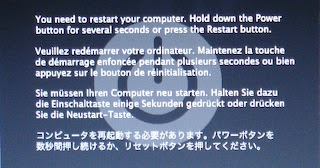
It's not a blue screen of death, it's a bit prettier. Only thing you can do is power-cycle your computer though.
This was caused by a bluetooth driver problem after a resume from a suspend. It probably didn't help that my other Windows PC was fighting the Mac for the mighty mouse connection :)
First I've seen - certainly not common.

It's not a blue screen of death, it's a bit prettier. Only thing you can do is power-cycle your computer though.
This was caused by a bluetooth driver problem after a resume from a suspend. It probably didn't help that my other Windows PC was fighting the Mac for the mighty mouse connection :)
First I've seen - certainly not common.
Friday, May 11, 2007
Xee, The best photo browser on Mac: with apropos to ACDSee
[update 4-Mar-2008. Xee v2.0 fixes this problem, as pointed out in the comments below. Get the update here]
[update 7-Jan-2007. Xee still has a bug in Leopard with full-screen mode, but works fine windowed. If you need something to tide you over until this is fixed, Sequential is a good, simple photo browser.]
 Xee
Xee
[update 7-Jan-2007. Xee still has a bug in Leopard with full-screen mode, but works fine windowed. If you need something to tide you over until this is fixed, Sequential is a good, simple photo browser.]
XeeI've been looking for an excellent, fast photo browser for Mac OS X that doesn't make you import your photos first. This is just a waste of disk space (especially if you're using a laptop). So the problem is to browse through thousands of photos on network, external or local volumes without any stuffing around. This is definitely the best I've found so far.
I really wanted something like ACDSee. Xee uses the Finder to choose the folder to browse. You can see thumbnails in that view if you set it (though it's not perfect). Once the first image has been selected Xee has all the features to quickly flick through a set of photos in a folder.
It's a universal binary and really, really fast probably because it uses OpenGL to render the images.
It also has customizable keyboard commands, which is an essential feature IMHO. It also has great full-screen and zoom support. The only feature it lacks (apart from thumbnails) is the ability to reassign the mouse scroll wheel to program functions but I'm sure they'll add it soon.
[Update, you can set the app to pan rather than progress through images in Preferences, General Tab, "Scroll wheel: {Browses images, Scrolls images}". Didn't see that! So that feature has been implemented. Now we just need mouse button allocation!]
It's incredible to me that Aperture doesn't allow a incremental zoom in their application - it's the most basic feature and the Loupe control and 100% zoom feature doesn't always cut it. They should really add that feature.
Download Xee here. There's a Google Code project on this as well and you can get the full source. You can then play with it in Xcode if you want.
It'd be nice to see a fast thumbnail generator so you don't have to rely on the Finder to browse but traditional implementations of this have been very, very slow and introduced high overheads with the database management. ACDSee has spent a lot of time making this aspect of their application fast but don't do a modern Mac version. The older version for Mac isn't worth trying - it's only for PPC and obviously very early code.
So from all the Mac users, thanks for this great application.
Wednesday, May 09, 2007
Review: 13 Mac OS X Password Managers, two that don't suck
[Added 6 more password managers thanks to user feedback]
Nobody wants to have their online accounts stolen. This article reviews 20 password managers for my requirements. Only four of them got a good grade so there's room for improvement. Firefox will happily show any user sitting at your computer all your web site passwords unless you secure it (and has had security vulnerabilities in 2.0.0.2 - fixed in 2.0.0.3).
But first, some tips to maintain the higher level of security. This advice depends on your paranoia level and how much you want to avoid identify theft and scams.
For the average user, good security usually means strong passwords, using different passwords for different sites ... and other measures such as:
What makes a good password?
There are plenty of sites about the place that can tell you about the quality of passwords as a function of recovery speed. Basically, you should use upper and lower case, you should include digits and some punctuation/symbols, your password should be at least 10 characters long, better to be 12 to 16 and contain no dictionary words. (Although apparently windows passwords should not be 14 characters). You should have different passwords for different sites. You should never leave a password set to the default. Never write passwords on post-its.
You can also try using a pronounceable password generator like Xyzzy. This isn't perfect but it's one way to remember moderately complex passwords. It runs on Windows and Mac.
My OS and/or browser remembers passwords for me!
Most browsers will remember your password for you if you let them. I don't like this feature and recommend against it. Like the dark side of the force, this feature can be very tempting as it is so easy but introduces a couple issues that you have to be aware of:
Firefox has a good friend in Google who developed BrowserSync that will synch your bookmarks, passwords, cookies and history on any firefox browser that has the plug-in installed. HIGHLY recommended.
Also, for Firefox users: Firefox -> Preferences, Security Tab, Show Passwords, Show Passwords ... exposes passwords!!! Not many people know this, but now you do. This also works on the Windows and Linux versions of Firefox as well and is the default setting unless you change it ... so if you insist on having Firefox storing your passwords then tick the "Use a master password" setting and set that master password!
I was turned off browser password storage back in the early days of Opera, where it stored certain passwords in clear text files. I'm sure they don't do that now.
Keychain access is awesome for all sorts of OS related items but lack convenience and features of most of the password managers listed below. Obviously Keychain is part of the solution for OS X but would be a discussion all by itself and this article is already way too bloated and still terse.
Authentication questions.
Often a site will have questions that you have already pre-answered that will identify you if you forget your password. Things like “what town were you born in?” and such. These sort of questions will allow an attacker who has some knowledge about you to get into your account. Also, if the hosting site is hacked then this question and answer may be exposed to the hacker which gives them more information about you. My suggestion is to lie in a random way. For the “what town were you born in?” question, just make up a password unique to that site and use that as the answer "jgdalpitwburg".
So, now you have strong passwords for all of the web sites you visit ... how do you remember them all? Well the answer is – you most likely can't. You need some sort of password manager.
Password managers expose you to another set of problems:
I would not use a password manager that exposes your password as part of the normal procedure to open the associated web site. This means that anyone with you can see the password, which makes the password manager a security hazard rather than a security aid. I was shocked at how many of the password managers actually did this.
Of the 20 password managers that I looked at, I found that only four were good (5/5) and two more were worth considering (4/5). Two of the 20 were from web sites that were so dodgy-looking that I was afraid to install the software. Note “My rating” is purely subjective and based on my requirements. The “Notes” column is far from comprehensive but gives a guide to notable things that struck me as I was looking at the software.
Nobody wants to have their online accounts stolen. This article reviews 20 password managers for my requirements. Only four of them got a good grade so there's room for improvement. Firefox will happily show any user sitting at your computer all your web site passwords unless you secure it (and has had security vulnerabilities in 2.0.0.2 - fixed in 2.0.0.3).
But first, some tips to maintain the higher level of security. This advice depends on your paranoia level and how much you want to avoid identify theft and scams.
For the average user, good security usually means strong passwords, using different passwords for different sites ... and other measures such as:
- avoid responding to instant messaging/email phishing scams
- don't believe that you have won a lottery or that you can help some African smuggle millions out of his country,
- don't run anything on your computer except software you have specifically intended to install,
- never buy anything from spammers, anything that comes from non-family oriented image sites is always infested with nasties than the girls themselves would have
- NEVER open email attachments from anyone except for items you have specifically requested (this means you do NOT open the joke file that your friends have just sent you)
- have anti-virus and anti-spyware installed
- have your computer behind a NAT router and/or install a software firewall.
What makes a good password?
There are plenty of sites about the place that can tell you about the quality of passwords as a function of recovery speed. Basically, you should use upper and lower case, you should include digits and some punctuation/symbols, your password should be at least 10 characters long, better to be 12 to 16 and contain no dictionary words. (Although apparently windows passwords should not be 14 characters). You should have different passwords for different sites. You should never leave a password set to the default. Never write passwords on post-its.
You can also try using a pronounceable password generator like Xyzzy. This isn't perfect but it's one way to remember moderately complex passwords. It runs on Windows and Mac.
My OS and/or browser remembers passwords for me!
Most browsers will remember your password for you if you let them. I don't like this feature and recommend against it. Like the dark side of the force, this feature can be very tempting as it is so easy but introduces a couple issues that you have to be aware of:
- Backup of passwords - your hard drive could crash at any time. Maybe right now!
- Anyone with access to your browser when you are away from the keyboard will be able to access all of your sites - do you lock your machine?
- You will be unable to use the protected websites when you're away from your beloved password enabled browser.
- How does your browser protect your passwords?
- How vulnerable are these stored passwords to web script attacks?
- What about passwords for things other than the web - eg: encrypted documents.
- I will kill a kitten for every person I find using this feature.
Firefox has a good friend in Google who developed BrowserSync that will synch your bookmarks, passwords, cookies and history on any firefox browser that has the plug-in installed. HIGHLY recommended.
Also, for Firefox users: Firefox -> Preferences, Security Tab, Show Passwords, Show Passwords ... exposes passwords!!! Not many people know this, but now you do. This also works on the Windows and Linux versions of Firefox as well and is the default setting unless you change it ... so if you insist on having Firefox storing your passwords then tick the "Use a master password" setting and set that master password!
I was turned off browser password storage back in the early days of Opera, where it stored certain passwords in clear text files. I'm sure they don't do that now.
Keychain access is awesome for all sorts of OS related items but lack convenience and features of most of the password managers listed below. Obviously Keychain is part of the solution for OS X but would be a discussion all by itself and this article is already way too bloated and still terse.
Authentication questions.
Often a site will have questions that you have already pre-answered that will identify you if you forget your password. Things like “what town were you born in?” and such. These sort of questions will allow an attacker who has some knowledge about you to get into your account. Also, if the hosting site is hacked then this question and answer may be exposed to the hacker which gives them more information about you. My suggestion is to lie in a random way. For the “what town were you born in?” question, just make up a password unique to that site and use that as the answer "jgdalpitwburg".
So, now you have strong passwords for all of the web sites you visit ... how do you remember them all? Well the answer is – you most likely can't. You need some sort of password manager.
Password managers expose you to another set of problems:
- someone who can crack your password manager will have all of your passwords and access to everything.
- give your password manager a really strong password to open (this can be open to a keylogger attack though - a combination of GUI-based input can help).
- choose a password manager that uses good encryption and has a good security model.
- you won't be able to access your sites unless you have the password manager with you.
- remember the passwords to the most important sites (eg: webmail). The Xyzzy application might help (see above).
- have the encrypted data file available online.
- choose a password manager that can link to a mobile device, or export to text file that you can encrypt on your PDA.
- remember the passwords to the most important sites (eg: webmail). The Xyzzy application might help (see above).
- if you lose your password manager data then you won't be able to access anything.
- back up your data. You MUST do this anyway.
- password required to open password manager. if it uses a keylogger-safe method, even better.
- do not expose password at any time, only password out is copied to buffer to allow pasting into fields.
- auto lockout : timeout (duration configurable in prefs) that closes password manager or requires re-entry of password.
- clear buffer (if still contains the password) after n seconds.
- export of data in encrypted form for backing up.
- export of data in plain text for ... whatever use (to PDA).
- autofill web forms
- logging of activity. Logs not available from any menu item - just log file location specified in the documentation.
- take an isight photo at the beginning of each session of activity (limit of n images set in prefs)
I would not use a password manager that exposes your password as part of the normal procedure to open the associated web site. This means that anyone with you can see the password, which makes the password manager a security hazard rather than a security aid. I was shocked at how many of the password managers actually did this.
Of the 20 password managers that I looked at, I found that only four were good (5/5) and two more were worth considering (4/5). Two of the 20 were from web sites that were so dodgy-looking that I was afraid to install the software. Note “My rating” is purely subjective and based on my requirements. The “Notes” column is far from comprehensive but gives a guide to notable things that struck me as I was looking at the software.
| Software | Cost $US | My rating | Notes |
| PasswordWallet | $20 | 5/5 | + never exposes password + heaps of features + autotyping (clever) + synch with PalmOS device |
| 1Passwd | $30 | 5/5 | - exposes password on edit - auto lock tied to keychain access - expensive + excellent autofill + wonderful memorising of forms + Palm + Excellent Export/Import |
| PasswordVault | free / $15 | 5/5 | - free limits to 15 entries - expose password with click in edit mode + funky interface, skinable + mac + windows + linux versions + great export options |
| Yojimbo | $39 | 5/5 | - very expensive - no launch URL - no auto lock + password req to copy/view password + excellent documentation + feature rich + more than a password manager + very slick |
| Password repository | $25 | 4/5 | - exposed by button. - butt ugly. - expensive. - lacking features. + file handling. + good documentation. |
| Vault | $5 | 4/5 | - limited prefs, features. - no auto lock. - no auto clear buffer. - no export ... but obvious data file. + never exposes password. + simple interface. |
| info.xhead | $15 | 3/5 | - exposes password on entry/edit. - buggy exposure of password. + autofill web sites (clever). + funky interface. + lots of features. |
| PasswordPlus | $30 | 3/5 | - exposes password on edit or via show click in view - expensive - doesn't auto open URLs + Good documentation + OS X/Windows/Palm OS. |
| KeyMinder | $20 (£10) | 3/5 | - exposes password on click - unknown preferences (have to register) - no auto lock + OS X/Windows |
| AutoID | $5 | 2/5 | - exposes password on entry/edit. - butt ugly. + autofill web sites (clever). + option to hide password, but still exposed on dbl click. |
| iSafe Lite/Pro | free / $20 | 2/5 | - exposes password as you copy. - doesn't export. - no preferences. - no copy password to buffer. - poor documentation. - time out is fixed time ignores activity. + encrypts docs. |
| Wallet | $15 | 2/5 | - exposes password - clunky interface + autofill |
| KeePassX | Free | 2/5 | - expose password on click - no launch URL - no auto lock - buggy conversion to OS X - no help (probably a URL function) + Linux/KeePass:Windows/Palm |
| SafePlace | $10 | 2/5 | - exposes password to copy it. - no preferences. - butt ugly. - data file location? |
| Pastor | free / donate | 2/5 | - exposes password mouse-over - clunky interface |
| PasswordMaster | $10 | 2/5 | - exposes passwords by default. + pref option to hide passwords. - pref doesn't hide entry of password. - doesn't force password encryption of data! |
| DataGuardian | $20 | 2/5 | - exposed by click. - butt ugly. - totally undefined initially. - ugh, fricken waste of time. + very configurable. |
| WebConfidential | ~$27 (20Euro) | 2/5 | - exposes password on mouse over - expensive - butt ugly + autofill - very cool! + excellent net application integration + OS X/Windows/Palm OS |
| SecureNotes | $30 | *1/5 | - expensive. - site looks dodgy, example of downloading movies. (*did not install it) + can store files. |
| KeyMaster | free / donate | *1/5 | - exposes password - weak description, dodgy (*did not install it) |
Sunday, February 11, 2007
Make Safari load pages faster?
Top tip from Digg but easily done via the terminal by just typing (close Safari first)
defaults write com.apple.Safari WebKitInitialTimedLayoutDelay 0.25
The "Dugg" article wants you to download and install some software which does this and a number of other things, but you have to pay for the software while the above command is free to use.
Check out how fast the pages load. Seems faster? If you're happy and like to remain happy then stop reading here.
Apparently the effect is not real. A blog post from the alleged Safari developer claims that this option is no longer used by anything. So they left the option in the plist file to deceive people, or backward compatibility, or maybe they are just lazy.
So I tested the option by setting the delay to 1.0 and then 6.5 ... and there is no perceptible difference on the handful of pages I tried (some large and slow, some small and fast). Bugger. All the testimonials on the original digg article where people are so happy that their browser is running faster are apparently just a placebo effect. Surprising that nobody actually did benchmarks.
Yes, I use Safari. I tried using Firefox a while back on my old G3 (with OS X installed) and it didn't understand right and middle clicks properly (it does now). I configured Safari to function the way I wanted and found I didn't really miss any particular feature that Firefox had except advertisement blocking, but thanks to Pimp My Safari I have all that I think I need with Safari. I must say it will be a shame when I let my .Mac account expire (too expensive); I like the bookmark synchronising feature. I might switch back to Firefox at that stage and use Google's BrowserSync.
defaults write com.apple.Safari WebKitInitialTimedLayoutDelay 0.25
The "Dugg" article wants you to download and install some software which does this and a number of other things, but you have to pay for the software while the above command is free to use.
Check out how fast the pages load. Seems faster? If you're happy and like to remain happy then stop reading here.
Apparently the effect is not real. A blog post from the alleged Safari developer claims that this option is no longer used by anything. So they left the option in the plist file to deceive people, or backward compatibility, or maybe they are just lazy.
So I tested the option by setting the delay to 1.0 and then 6.5 ... and there is no perceptible difference on the handful of pages I tried (some large and slow, some small and fast). Bugger. All the testimonials on the original digg article where people are so happy that their browser is running faster are apparently just a placebo effect. Surprising that nobody actually did benchmarks.
Yes, I use Safari. I tried using Firefox a while back on my old G3 (with OS X installed) and it didn't understand right and middle clicks properly (it does now). I configured Safari to function the way I wanted and found I didn't really miss any particular feature that Firefox had except advertisement blocking, but thanks to Pimp My Safari I have all that I think I need with Safari. I must say it will be a shame when I let my .Mac account expire (too expensive); I like the bookmark synchronising feature. I might switch back to Firefox at that stage and use Google's BrowserSync.
Friday, December 15, 2006
9 apps $49 including Delicious, Newsfire, Textmate @ MacHeist
Visit MacHeist - you can get 9 applications for US$49 plus a percent of that goes back to charities you can nominate.
It's a good deal - so support indie software developers donate to well-respected charities and get some great software.
The list includes Delicious Library, TextMate and Newsfire which by themselves brings you out ahead...
Plus, they're up to $93,000 donated to charity - if they go to $100,000 in the next 2 days everyone gets TextMate free...
[Thanks to Simon for the tip...]
It's a good deal - so support indie software developers donate to well-respected charities and get some great software.
The list includes Delicious Library, TextMate and Newsfire which by themselves brings you out ahead...
Plus, they're up to $93,000 donated to charity - if they go to $100,000 in the next 2 days everyone gets TextMate free...
[Thanks to Simon for the tip...]
Dell vs Apple
We went ahead and purchased our laptops. I went for the cheaper option of the Apple MacBook Pro, the statistician likes red, and went for the Dell XPS M1710. Orders were placed at exactly the same time. Apple replied to me immediately via email saying they had received my order and I should expect the laptop in 6 days. Dell responded a week later with no delivery date. In fact they responded three times in quick succession, each time with the same order, just the laptops specs rearranged and never a delivery date. Odd. Well the day before we had the first response from Dell, I had already received my MacBook Pro from Apple. The statistician was upset that she hadn't received her M1710 when my Mac appeared, and we sent two queries to Dell over the next week that went unanswered.
The 17" MacBook Pro is stylish beyond what I deserve! The first thing I noticed after opening the sweet box of joy was how thin the notebook is. The quality of the build, the backlit keys, the richness of the speakers, understated and neat. Compared to the M1710 which appeared quite garish with all of its red glowing lights. The M1710 was much thicker although they both feel about the same weight.
After having set up Parallels and transferring across all of my old system smoothly, I began to feel just how nice the MacBook Pro is to use. I definitely do miss the individual PgUp, PgDn, Home, End keys, and would really like to have a Del key (rather than Fn + Delete). But as users have said: you get used to the combinations.
Note, that I have parallels running on my iMac but had never installed the "Parallels Tools" because (a) I didn't know they existed, and (b) I don't use parallels on my iMac that much. But I use Windows/Parallels on my MacBook a LOT and had a bit of frustration with copy and paste between the two environments ... until I installed the "Parallels Tools" ... Joy! Very easy to find and install, and makes Paralllels so much more useful.
Eventually, 10 days after I received my MacBook, we get a response from Dell, but only after I sent a final email to our contact and Cc: his boss, stating that our statistician was considering a change to Apple if Dell couldn't get their product shipped. The Dell equipment was already on the way and turned up within three days from Dell's reply.
We had ordered a Dell XPS M1710 and a 30" Dell monitor. Oh baby this is one sweet monitor. I thought 24" was huge but the 30" monitor makes 24" look way smaller than this difference between them sounds. Our contact at Dell assured us that the XPS M1710 would work with the 30" monitor at full resolution. In fact, the specs of the graphics card say this is indeed the case. However the laptop does NOT support the full resolution or, in fact, any resolution above 1280x800 on the 30" LCD monitor. Not good when we were promised the full resolution of 2560x1600. Dell support knew about this problem, but apparently the sales staff do not. Our statistician was livid.
To add to this pain, I attached my Apple MacBook Pro to the Dell 30" monitor ... and it just worked. Sweet mother of God how gloriously it worked. 2560x1600 on the 30" and 1680x1050 on the local 17" LCD. Words fail to describe the joy of that big screen on my desk with OS X spread out over the place. I want one.
So let me state this again: the top of the line Dell XPS laptop does not support the top of the line Dell 30" LCD screen. But the Apple MacBook Pro did.
I am producing so much smug right now.
The 17" MacBook Pro is stylish beyond what I deserve! The first thing I noticed after opening the sweet box of joy was how thin the notebook is. The quality of the build, the backlit keys, the richness of the speakers, understated and neat. Compared to the M1710 which appeared quite garish with all of its red glowing lights. The M1710 was much thicker although they both feel about the same weight.
After having set up Parallels and transferring across all of my old system smoothly, I began to feel just how nice the MacBook Pro is to use. I definitely do miss the individual PgUp, PgDn, Home, End keys, and would really like to have a Del key (rather than Fn + Delete). But as users have said: you get used to the combinations.
Note, that I have parallels running on my iMac but had never installed the "Parallels Tools" because (a) I didn't know they existed, and (b) I don't use parallels on my iMac that much. But I use Windows/Parallels on my MacBook a LOT and had a bit of frustration with copy and paste between the two environments ... until I installed the "Parallels Tools" ... Joy! Very easy to find and install, and makes Paralllels so much more useful.
Eventually, 10 days after I received my MacBook, we get a response from Dell, but only after I sent a final email to our contact and Cc: his boss, stating that our statistician was considering a change to Apple if Dell couldn't get their product shipped. The Dell equipment was already on the way and turned up within three days from Dell's reply.
We had ordered a Dell XPS M1710 and a 30" Dell monitor. Oh baby this is one sweet monitor. I thought 24" was huge but the 30" monitor makes 24" look way smaller than this difference between them sounds. Our contact at Dell assured us that the XPS M1710 would work with the 30" monitor at full resolution. In fact, the specs of the graphics card say this is indeed the case. However the laptop does NOT support the full resolution or, in fact, any resolution above 1280x800 on the 30" LCD monitor. Not good when we were promised the full resolution of 2560x1600. Dell support knew about this problem, but apparently the sales staff do not. Our statistician was livid.
To add to this pain, I attached my Apple MacBook Pro to the Dell 30" monitor ... and it just worked. Sweet mother of God how gloriously it worked. 2560x1600 on the 30" and 1680x1050 on the local 17" LCD. Words fail to describe the joy of that big screen on my desk with OS X spread out over the place. I want one.
So let me state this again: the top of the line Dell XPS laptop does not support the top of the line Dell 30" LCD screen. But the Apple MacBook Pro did.
I am producing so much smug right now.
Subscribe to:
Posts (Atom)